Use case · Apparel
Custom apparel with JUNO
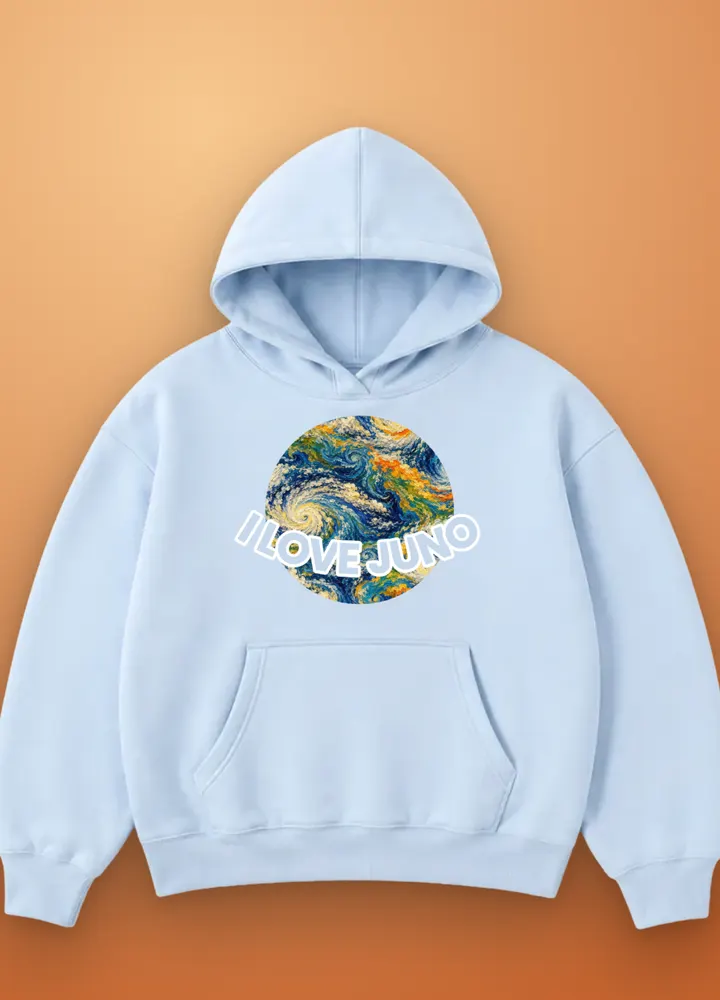
JUNO lets apparel shoppers pick a colour, a size and a design, then add their own text and style it on the garment. One template can serve every similar product: tees, hoodies and tanks.
What the shopper does
- Pick colour and size. Colour and size are the product's own Shopify variants. Each colour shows its own photo.
- Choose the artwork. A design picker offers the merchant's art set; the chosen design is placed on the chest.
- Write and style the text. The text follows a curve. The shopper can choose its weight, colour and outline from the options the merchant allows.
- Add to cart. On desktop the template has 2 steps; on mobile it has 4, one thing per screen.
The preview combines the selected product photo with the shopper's placed text or artwork.
What the merchant gets
Each order arrives in the Shopify admin with:
- The variant for the chosen colour and size.
- The design name, the text and its styling as line-item properties.
- A print-ready PNG for each configured print area, rendered at 300 DPI when calibrated and linked on the order.
- Use the PNG as artwork for printing. For embroidery, prepare the machine-specific file separately.
JUNO features it uses
- Design picker and arc text
- Live preview
- Reusable templates
- Desktop and mobile layouts
- Orders and print files
Build this setup
Use these guides to adapt the example to your products:
- Color swatch — Represent product options with solid color samples, while keeping the selected variant and product photo connected.
- Button — Offer compact labeled options with single or multiple selection, such as sizes, styles or independent extras.
- Arc text — Place custom text along a curved baseline for emblems, apparel graphics and circular compositions.
- Design — Let shoppers choose your prepared artwork and display the selected design in a defined position on the product.
- Design sets — Build reusable artwork collections that shoppers can choose from through a Design placement.
Try it
The hoodie is one of the products in thelive demo: personalize it, then press Add to cart to see the order the merchant receives.