Features
Everything JUNO does
JUNO is a Shopify app for product personalization. Merchants build templates in the Shopify admin; shoppers personalize the product on its product page with a live preview, and every choice arrives on the order ready for production.
Visual template editor
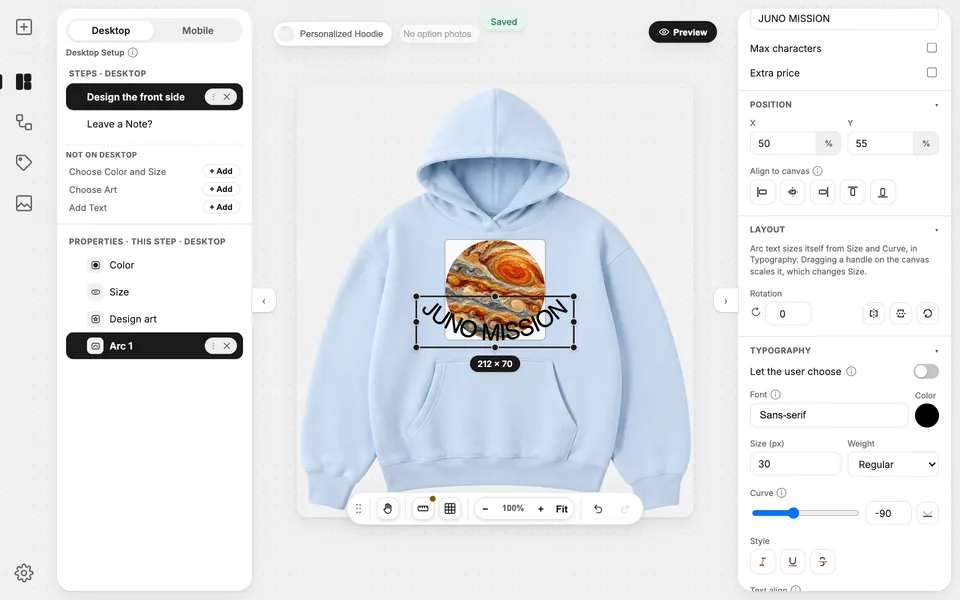
Merchants build templates in JUNO's visual editor, which runs inside the Shopify admin. No code is needed.
The editor shows the product photo as a canvas. Fields are dragged onto it where they should appear, then sized and styled in the panel beside it: position, font, size, weight, colour and curve.
Fields are grouped into steps, and Preview shows the template exactly as a shopper will see it.
Set it up: Getting started
Live preview
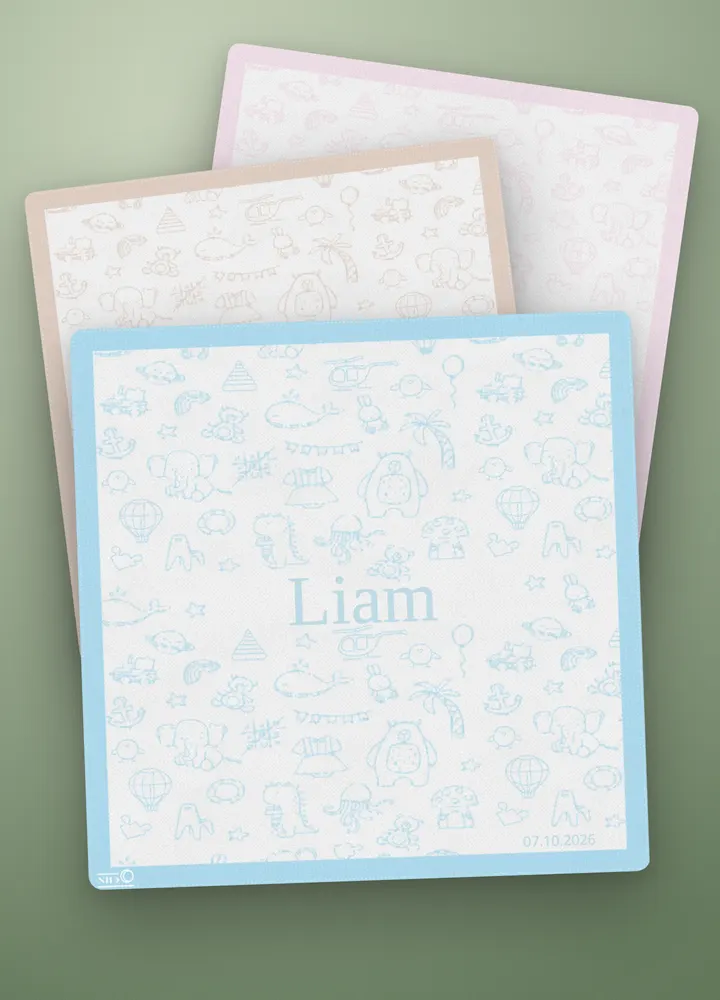
Shoppers see every change on the product page as they make it: text, fonts, colours, uploaded photos and designs appear on the product photo.
The preview always uses the right photo. Merchants tag each product's photos by view (front, back…) and by the options they show, in the product's Gallery. A photo can depend on one option, such as colour, or on two together, such as colour and material (Growth plan and above).
Shoppers stay on the merchant's own product page. JUNO opens over it when they press Customize.
Set it up: Product views
16 personalization field types
JUNO has 16 personalization field types. Shoppers can add text, choose fonts, colours and materials, and upload images.
Choice properties
Choose from linked Shopify product options or values you configure:
- Dropdown
- Radio
- Checkbox list
- Colour swatch
- Image swatch
- Button
- Switch
- Range slider
Placement properties
Place personal details and artwork on the product. Comment collects an order note; date, time and number fields can also be order-only:
- Text box
- Comment
- Arc text
- Date picker
- File upload
- Design
- Time picker
- Number box
Merchants can let shoppers pick the font, weight, style and colour of their own text, from the choices the merchant allows (Growth plan and above).
Reusable templates
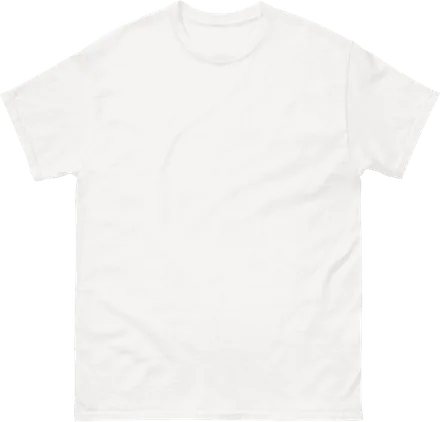
A template is the experience a shopper personalizes: its steps, fields and options. One template can be reused across many similar products.
Templates are assigned from their Products tab: to all products, to products picked by hand, or to products that match conditions. Existing products, variants, inventory and prices stay as they are.
When one product's photo is framed differently, a placement can be nudged for that product alone, while every product keeps sharing one template (Pro plan and above).
Set it up: Templates & products
Rules
Rules control which options appear. A rule shows or hides a property depending on the shopper's other choices.
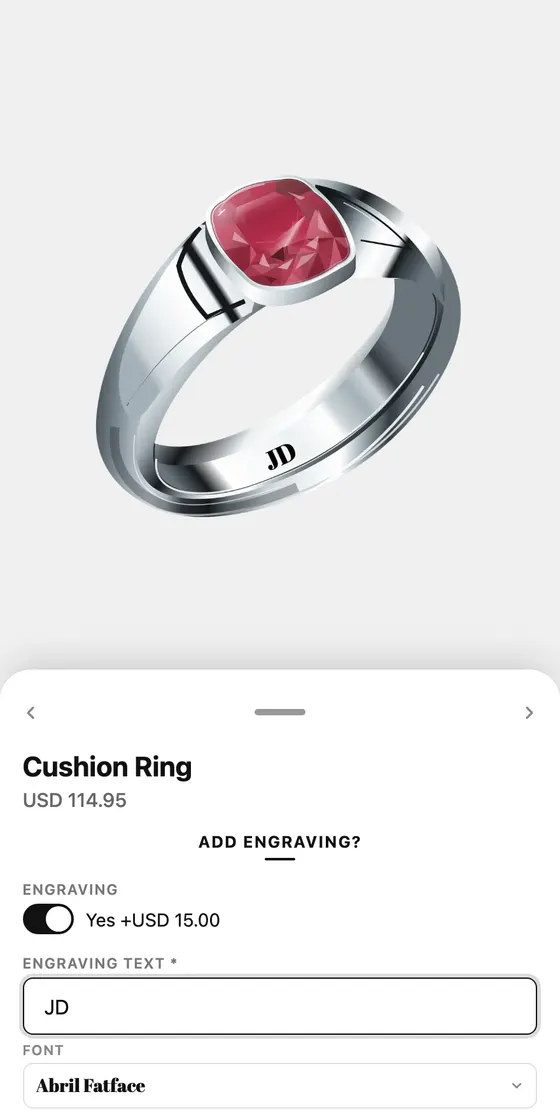
A rule can require all of its conditions or any of them. For example: show the engraving text field only when the shopper turns engraving on.
Set it up: Rules & extra pricing
Add-on pricing
Options can carry add-on prices. The price on the product page updates as soon as the shopper picks a priced option.
Add-ons are charged at checkout, on top of the variant price, so the shopper pays the total they were shown. Variant prices stay as they are.
In the ring example, gold adds $25 and engraving adds $15 to the base price.
Set it up: Rules & extra pricing
Desktop and mobile layouts
Each template has its own step layout for desktop and for mobile, set in the editor's Desktop and Mobile tabs.
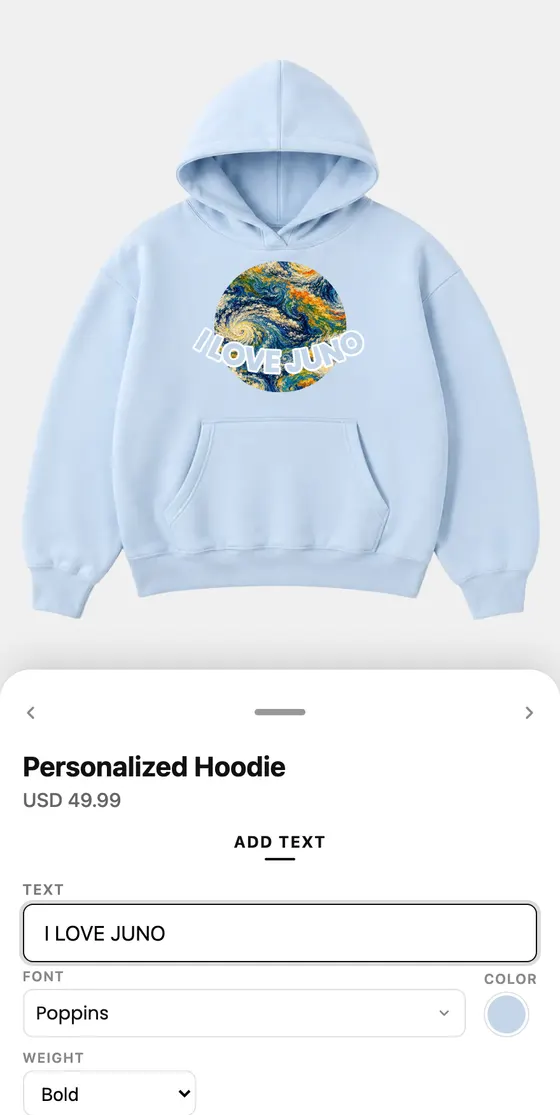
Desktop can show several fields per step. On mobile, the editor is a drawer over the product photo, often with one thing per step. The hoodie template has 2 steps on desktop and 4 on mobile.
Set it up: Templates & products
Orders and print files
Every choice arrives on the Shopify order as a line-item property: text, colours, materials, and a link to any uploaded image.
At add to cart, JUNO renders a print-ready PNG for each configured print area and attaches it to the order. A calibrated print area is rendered at 300 DPI, so the file opens at its real size.
JUNO provides Liquid snippets that show each print file as a thumbnail and download link in order emails and packing slips. Past orders keep their personalization details, because they are stored on the orders themselves.
Try the live demo and press Add to cart to see an example order.
Set it up: Orders & print files